Tracking events
After creating the experiment, your chatbot needs to make two HTTP requests:
evaluatebefore answering, to choose the prompt varianttrackafter the user reacts, to send the result back
For our math chatbot, the main metric is thumbs_up.
1. Create an API key
Open API Keys, click New key, then copy the plaintext key. You only see it once, so put it in your server environment as EASY_EXPERIMENTS_API_KEY.
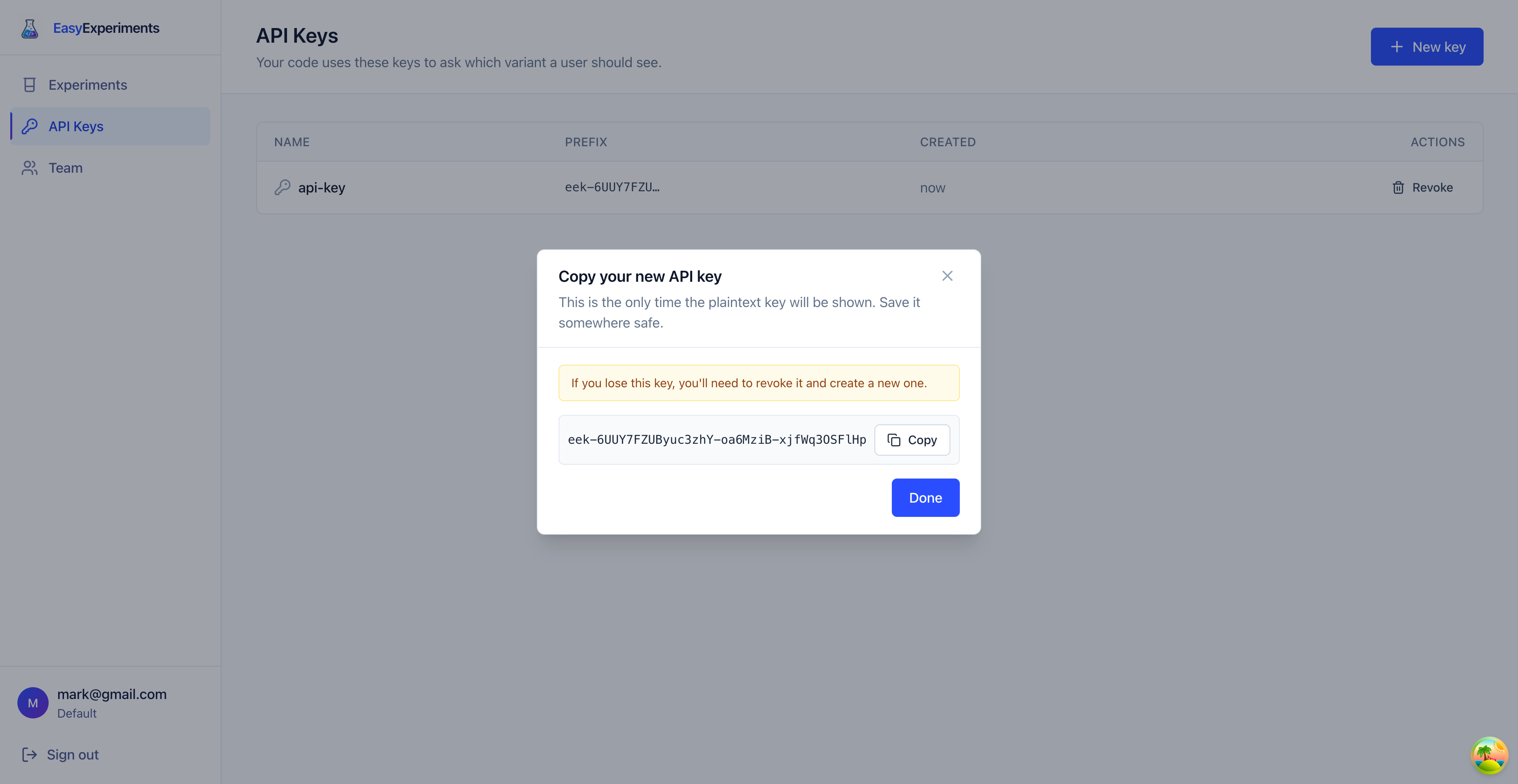
evaluate and track.2. Evaluate: choose a prompt
Call evaluate when the user asks a math question. Easy Experiments checks the experiment key, the user id, and the user properties, then returns the variant config.
JavaScript:
const defaultConfig = {
  prompt: "You are a math tutor. Give the final answer in one sentence.",
  temperature: 0.2,
};

const res = await fetch("https://app.easy-experiments.dev/api/v1/experiments/evaluate", {
  method: "POST",
  headers: {
    "Content-Type": "application/json",
    "X-Api-Key": process.env.EASY_EXPERIMENTS_API_KEY,
  },
  body: JSON.stringify({
    experimentKey: "math-bot-system-prompt-v2",
    entityId: "user_42",
    properties: { country: "ES" },
  }),
});

const { variantKey, config } = await res.json();
const { prompt, temperature } = config ?? defaultConfig;
Example response when the user matches a segment:
{
  "experimentKey": "math-bot-system-prompt-v2",
  "variantKey": "treatment",
  "config": {
    "prompt": "You are a math tutor. Walk through the problem step by step, then state the final answer.",
    "temperature": 0.2
  }
}
Use config.prompt as the system prompt for the chatbot answer.
When variantKey and config are null
evaluate returns variantKey: null and config: null when:
- the user does not match any segment (in our example, anyone outside ES/FR)
- the experiment is still in Draft or has been Stopped
- the experiment key does not exist for this API key’s company
Always have a fallback ready. The snippet above uses config ?? defaultConfig, so the chatbot keeps working for users who are not in the test.
3. Track: send the result
Call track after the user clicks thumbs up. Use the same entityId from the evaluate request so Easy Experiments can connect the event to the assigned variant.
JavaScript:
await fetch("https://app.easy-experiments.dev/api/v1/track", {
  method: "POST",
  headers: {
    "Content-Type": "application/json",
    "X-Api-Key": process.env.EASY_EXPERIMENTS_API_KEY,
  },
  body: JSON.stringify({
    events: [
      {
        entityId: "user_42",
        metricName: "thumbs_up",
        idempotencyKey: "thumbs_up:message_123",
      },
    ],
  }),
});
Example response:
{
  "accepted": 1,
  "deduped": 0
}
Avoid duplicate events
Sometimes the same event can be sent twice: a user double-clicks, a request retries, or a background job runs again.
Use idempotencyKey to tell Easy Experiments, “these repeats are the same real event.” In the example above, thumbs_up:message_123 means one thumbs-up for one chatbot message.
If Easy Experiments sees the same idempotencyKey again, it does not count the event twice. The response will show it in deduped instead of accepted.
For evaluate, you do not need an idempotency key. Just keep using the same entityId for the same user, and the service will keep that user assigned consistently.
Numeric values
For count events like thumbs_up, omit value. The event counts as 1.
For numbers like token count or latency, include value:
{
  "entityId": "user_42",
  "metricName": "output_tokens",
  "value": 412
}
The important rule is simple: use the same entityId in evaluate and track.
Next: Reading the results.